Prerequisites: Before creating a product you’re should have;
- Logged in and have access to CGIC App inventory management role.
- Determine;
- Item code (unique identifier, e.g.
OVITA-500ML) - Item Group (e.g. “Beverages”)
- Default Unit of Measure (e.g. “Liter”)
- Relevant Warehouses (for stock purposes)
- Item code (unique identifier, e.g.
1. How to add products
- On home go to Stock and click on items
- On the Item list, click on new.
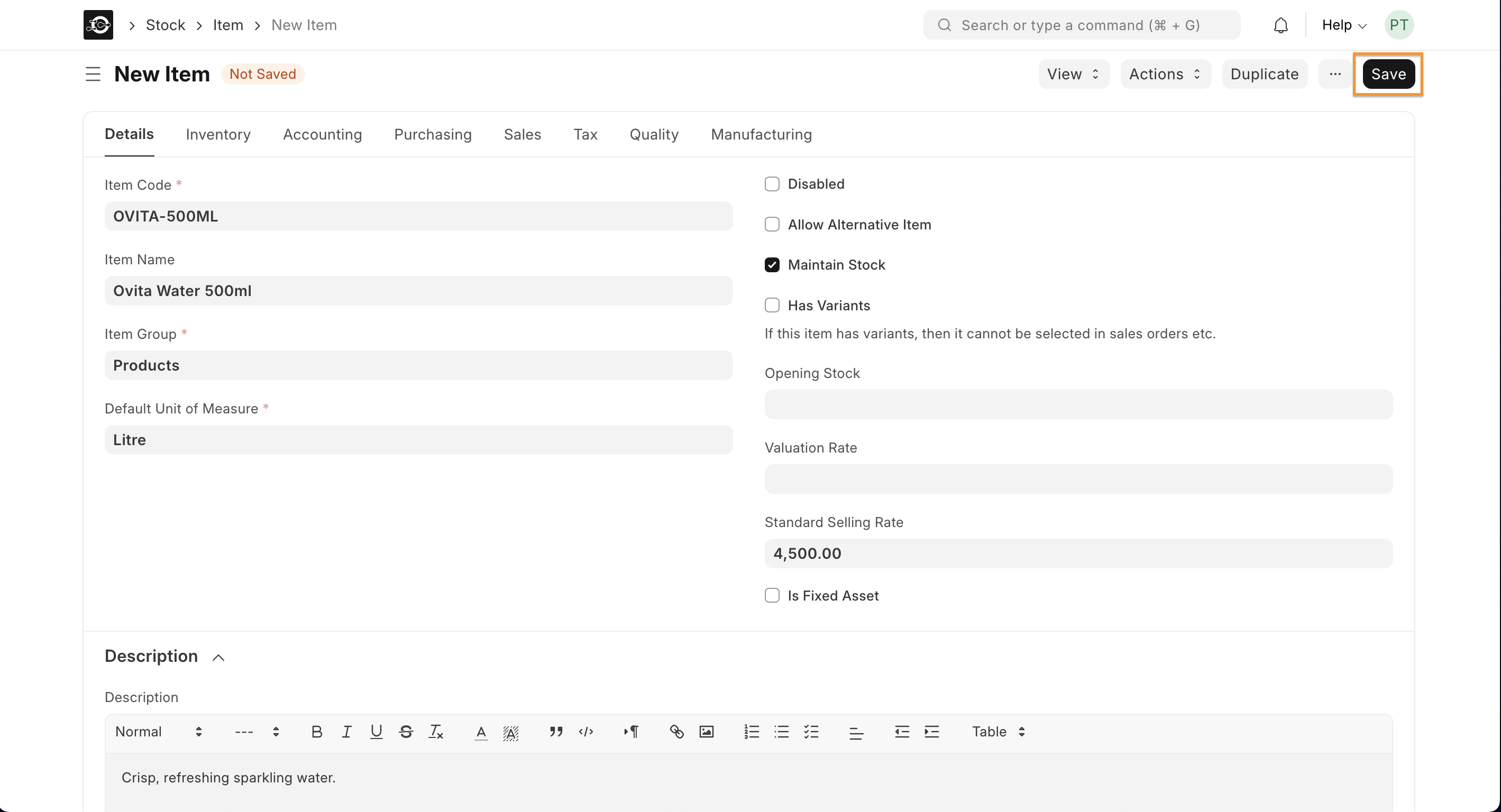
- Enter an Item Code
- Select an Item Group.
- Enter the opening stock units and standard selling rate.
- Save.
2. Item Properties
- Item Name: Item name is the actual name of your product.
- Item Code: Item Code is a short-form to denote your Item. If you have very few Items, it is advisable to keep the Item Name and the Item Code same. This helps new users to recognize and update Item details in all transactions. In case you have a lot of Items with long names and the list runs in hundreds, it is advisable to code.
- Item Group: Item Group is used to categorize an Item under various criteria like products, raw materials, services, sub-assemblies, consumables or all Item groups. Create your default Item Group list under Setup > Item Group and pre-select the option while filling your New Item details under Item Group. Item groups can be sub-assemblies, raw materials, etc, or based on your business use case.
- Default Unit of Measure: This is the default measuring unit that you will use for your product. It could be Nos, Kgs, Meters, etc. You can store all the UOMs that your product will require under Set Up> Master Data > UOM. These can be preselected while filling New Item by using % sign to get a pop up of the UOM list. Visit the UoM page for more details
2.1 Options when creating an item
- Disabled: If you disable an Item, it cannot be selected in any transaction.
- Allow Alternative Item: Sometimes when manufacturing a finished good, specific material may not be available. If you tick this, you can create and select an alternative item from the Item Alternative list. To know more, visit the Item Alternative page.
- Maintain Stock: If you are maintaining stock of this Item in your Inventory, CGIC App will make a stock ledger entry for each transaction of this item. Ensure to keep this option unchecked when creating a non-stock Item (make to order/engineer) or a service.
- Valuation Rate: There are two options to maintain valuation of stock. FIFO (first in - first out) and Moving Average. To understand this topic in detail please visit Item Valuation, FIFO and Moving Average.
- Is Fixed Asset: Tick this checkbox if this item is a company Asset. Check out the Asset Module to know more.
- Uploading an Image: To upload an image for your icon that will appear in all transactions, save the partially filled form. Only after your file is saved the ‘Change’ button will appear on the Image icon. Click on Change, then click on Upload, and upload the image.
3. Brand and Description
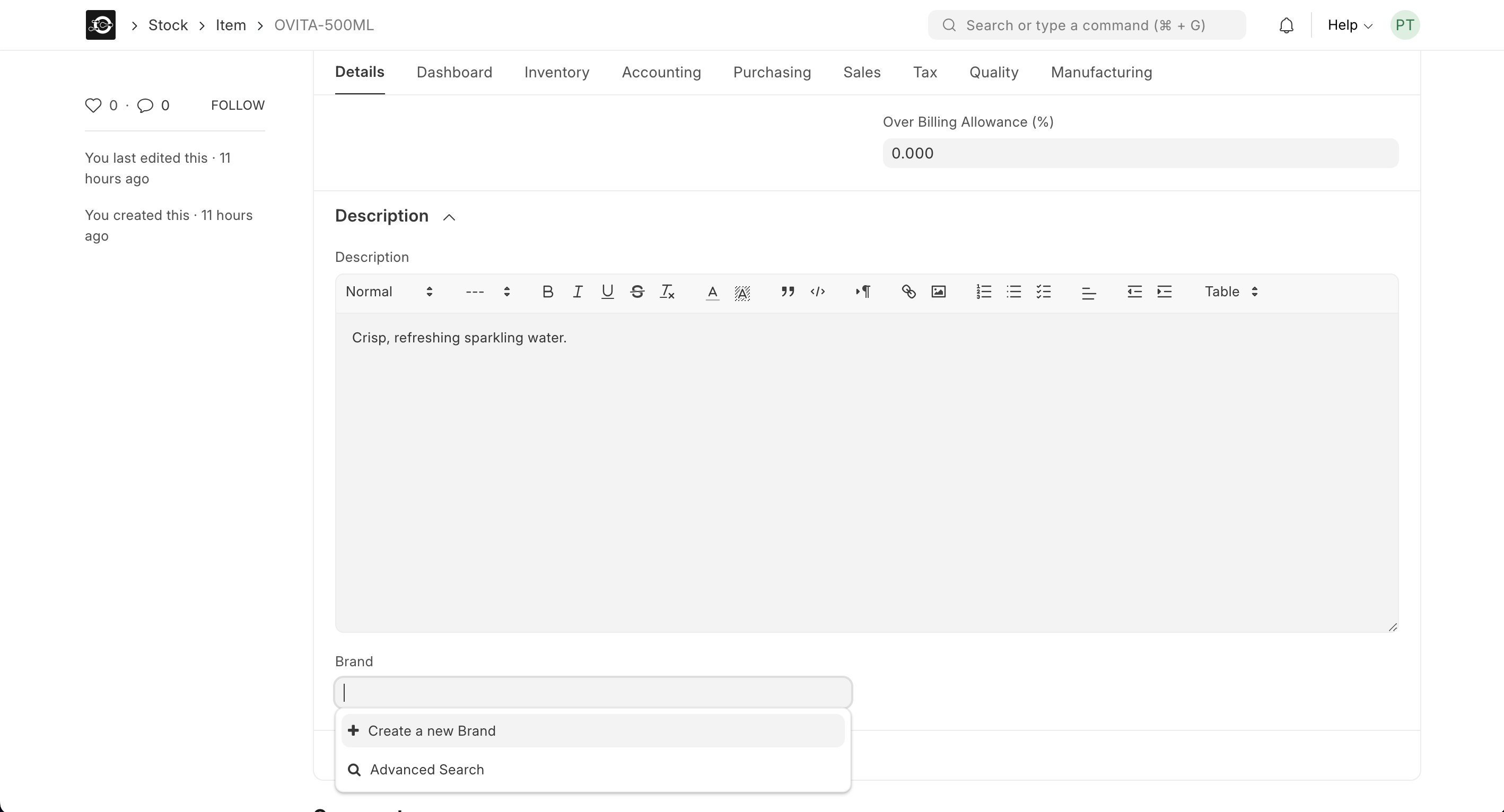
- Brand: If you have more than one brand save them under Selling > Brand and pre-select them while filling a New Item.
- Description: Description of the item. The text from the Item Code will be fetched by default