

Prerequisites
- Basic Setup
- Warehouses where you’ll store raw materials (e.g., “Raw Material Store”) are created under Stock ▶️ Warehouse.
- Unit of Measure entries (e.g., Kilogram, Litre, Piece) exist under Setup ▶️ UOM.
- Information on Hand
- Material Name (e.g., “Premium Wheat Flour”)
- Material Code (unique, e.g.
RM-WF-25KG) - Default UOM (e.g., Kilogram)
- Default Warehouse (where stock is stored)
1.0 Steps to Add a Raw Material
- Open the Item List
- From the home page, click Stock ▶️ Item ▶️ Item List.
- Create a New Item
- Click New in the top-right corner.
- Enter Basic Details
| Field | What to Enter |
|---|---|
| Item Name | Premium Wheat Flour |
| Item Code | RM-WF-25KG |
| Item Group | Select or create Raw Materials |
| Default UOM | Kilogram |
| Description | Brief notes, e.g., “High-grade flour for baking. |
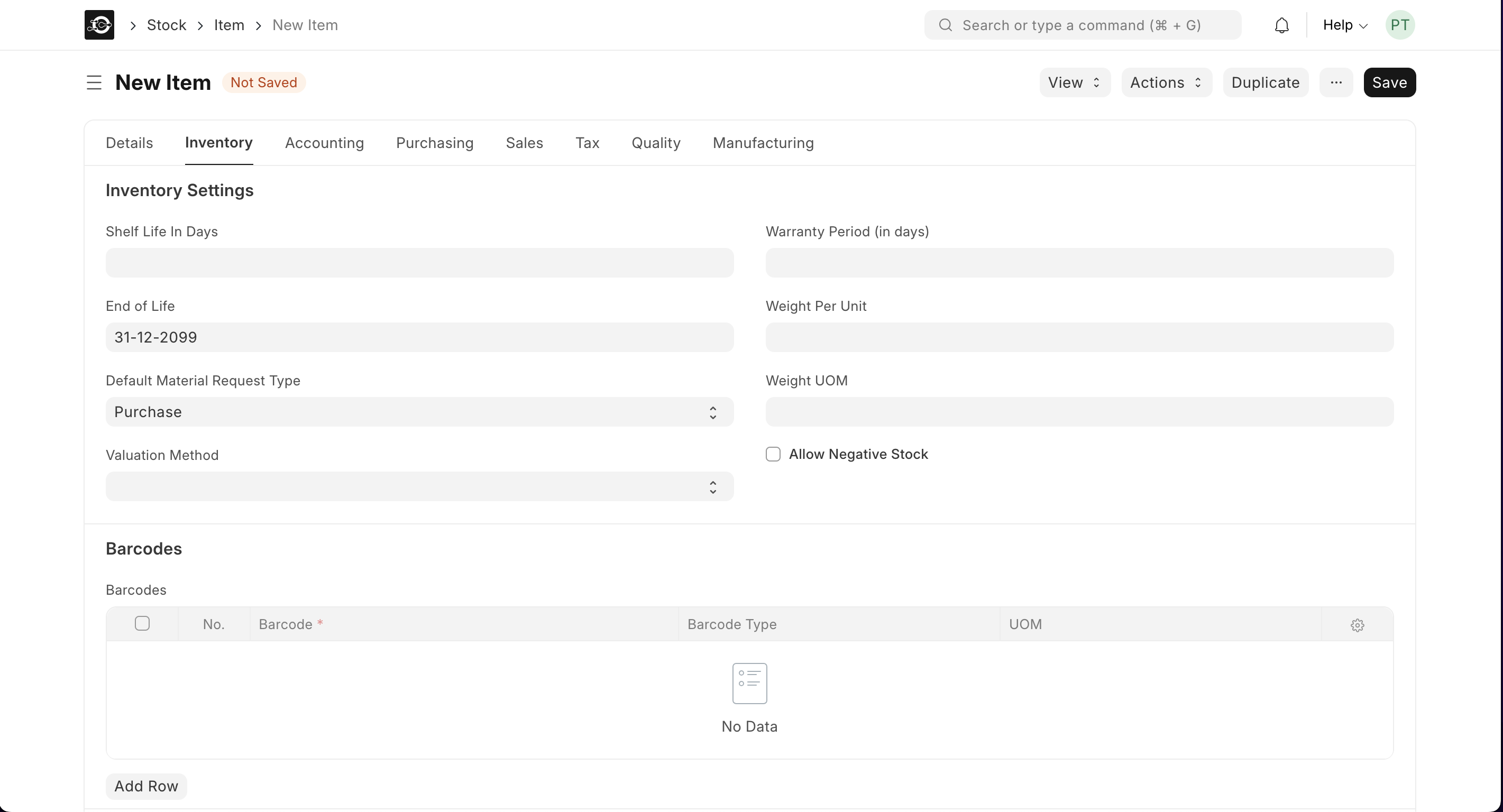
- Inventory Settings
| Field | What to Enter & Why |
|---|---|
| Shelf Life (Days) | e.g. 180 – days before the material expires (for alerts) |
| End of Life | e.g. 31-12-2029 – date when the material is no longer valid |
| Default Material Request Type | Purchase – requests for this material default to Purchase |
| Valuation Method | FIFO or Moving Average – how stock cost is calculated |
| Warranty Period (Days) | if applicable) days covered under warranty after receipt |
| Weight per Unit | e.g. 25 – useful for shipping / production calculations |
| Weight UOM | e.g. Kilogram |
| Allow Negative Stock | ✔️ (optional) – permits back-to-back selling when stock hits 0 |
- Define Barcodes (Optional) Still on the Inventory tab, scroll to Barcodes and click Add Row to map any of these:
| Column | Example & Purpose |
|---|---|
| Barcode | 8901234567894 – the actual scanned barcode |
| Barcode Type | EAN-13 – the barcode standard |
| UOM | Each – unit this barcode represents |
6. Purchasing Configuration
- Click the Purchasing tab.
- Purchase UOM: confirm (e.g., “Kilogram”)
- Supplier Details:
- Click Add Row under Supplier Details
- Supplier: pick from your list (or create one if needed)
- Lead Time (Days): average delivery time
- Last Purchase Rate: cost per UOM (for valuation)
- ✔️ Allow Purchase should be checked
- Accounting Setup
- Click the Accounting tab.
- Valuation Method: choose FIFO or Moving Average
- Expense Account: e.g., “Cost of Goods Sold – Raw Materials”
- Stock Adjustment Account: e.g., “Inventory Adjustments”
- Upload Image & Attachments (optional)
- Save the Item first.
- Click the image placeholder to Change and upload a photo or spec sheet.
- Save Your New Raw Material
- Click Save in the top-right corner.
- Your raw material is now available for purchase orders, stock entries, and BOMs.