

1.0 Enable Batch Tracking for the Item
- Navigate to the Item List (
Stock > Items > Item). - Select the raw material item or create a new one.
- Under the Inventory section:
- Check Has Batch.
- Optional: Enable Automatically Create New Batch to generate batch IDs during transactions.
- Save the item.
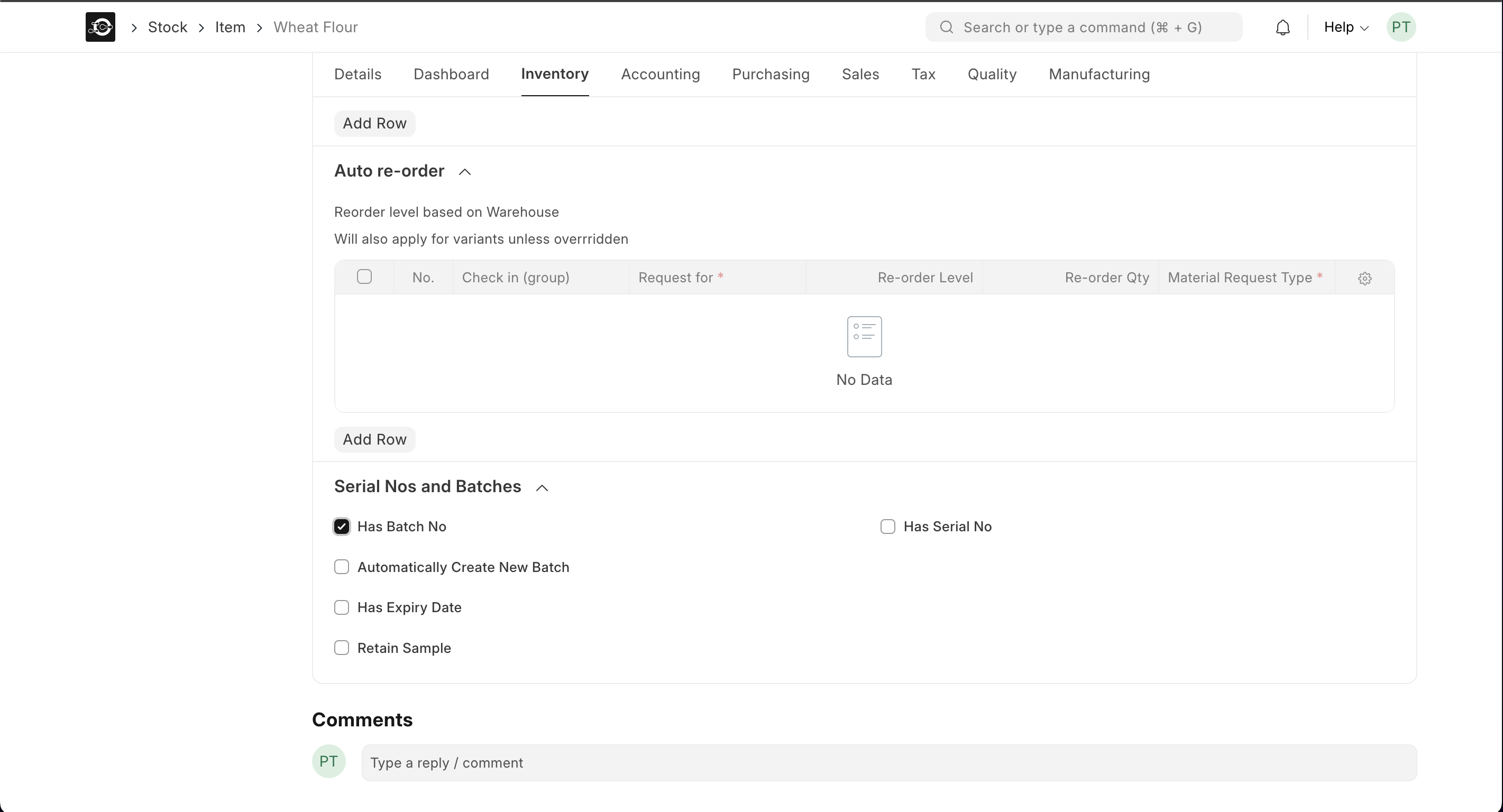
1.1 Create Batches/Lots Manually
If batches require manual creation (e.g., for specific lot numbers or expiration dates):- Go to the Batch list (
Stock > Batch). - Click New.
- Fill in:
- Batch ID: Unique identifier (e.g.,
BATCH-RAW-001). - Item: Select the raw material item from the Item List.
- Expiry Date (if applicable).
- Batch ID: Unique identifier (e.g.,
- Save.
2.0 Record Batches in Stock Transactions
A. Receiving Batches (Purchase Receipt)
- Create a Purchase Receipt (
Stock > Purchase Receipt > New). - Add the raw material item from the Item List under the Items table.
- In the Batch column:
- Select an existing batch or enter a new batch ID (if auto-creation is enabled).
- Submit the receipt.
B. Consuming Batches (Stock Entry for Production)
- Create a Stock Entry (
Stock > Stock Entry > New). - Set Purpose to Material Issue or Manufacture.
- Under Items:
- Add the raw material item from the Item List.
- Select the Batch to consume.
- Submit the entry.
3.0 Track Batch-wise Stock
- View batch-specific stock levels:
- Go to the Batch list (
Stock > Batch). - Open the batch to see Stock Balance and Ledger.
- Go to the Batch list (
- Use the Stock Balance Report (
Stock > Reports > Stock Balance) and filter by batch.
Additional Features
Additional Features
- Automatic Batch Numbering: Configure numbering series in Stock Settings (
Settings > Stock Settings > Batch Number Series). - Batch Expiry Alerts: Set up Auto-Repeat for expiry notifications.