Prerequisite:Vendors (Contacts + Addresses) have been created under Buying ▶️ Supplier
1. Adding a Vendor to an Item
- Open the Item
- Navigate to Stock ▶️ Item ▶️ Item List
- Click the product name (e.g. “Ovita Water 500ml”)
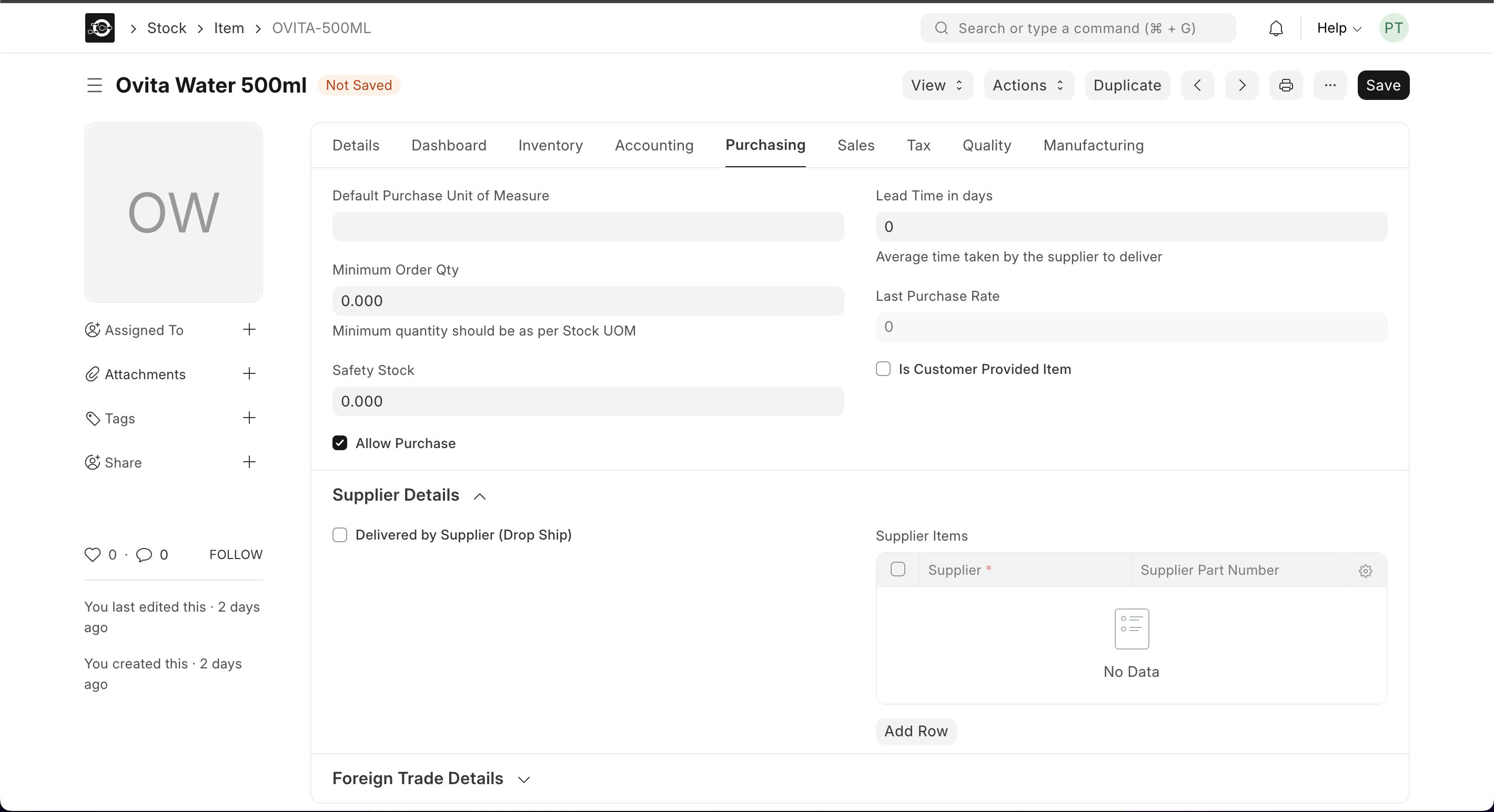
- Navigate to the Purchasing Tab
- In the Item form, select Purchasing from the top tab bar.
- Go to Purchasing
- Select the Purchasing tab
- Add Supplier Row
- Click Add Row under Supplier Details
- Supplier: pick from the dropdown
- Supplier Part Number (optional): enter vendor SKU
- Default Purchase UOM: confirm the unit
- Lead Time in Days: set average delivery time
- Last Purchase Rate: enter cost (if known)
- Enable Purchase & Default
- Ensure Allow Purchase is checked
- Tick Default next to your primary supplier
- Save
- Click Save at the top-right
2. Editing or Removing a Vendor
- Revisit Purchasing Tab
- Open the same Item and click Purchasing
- Edit or Delete
- Modify fields directly in the supplier row
- Click the trash icon to remove a supplier
- Save Changes
- Click Save to update