

1. Steps to View an Item Profile
- Open the Item List
- From the home page, go to Stock ▶️ Item ▶️ Item List.
- Locate Your Item
- Use the search bar at the top to type the Item Name or Item Code (e.g.
OVITA-500ML). - Optionally, apply filters (Item Group, “Has Variants,” etc.) to narrow down results.
- Use the search bar at the top to type the Item Name or Item Code (e.g.
- Open the Profile
- Click the Item Name in the list to open its detail view.
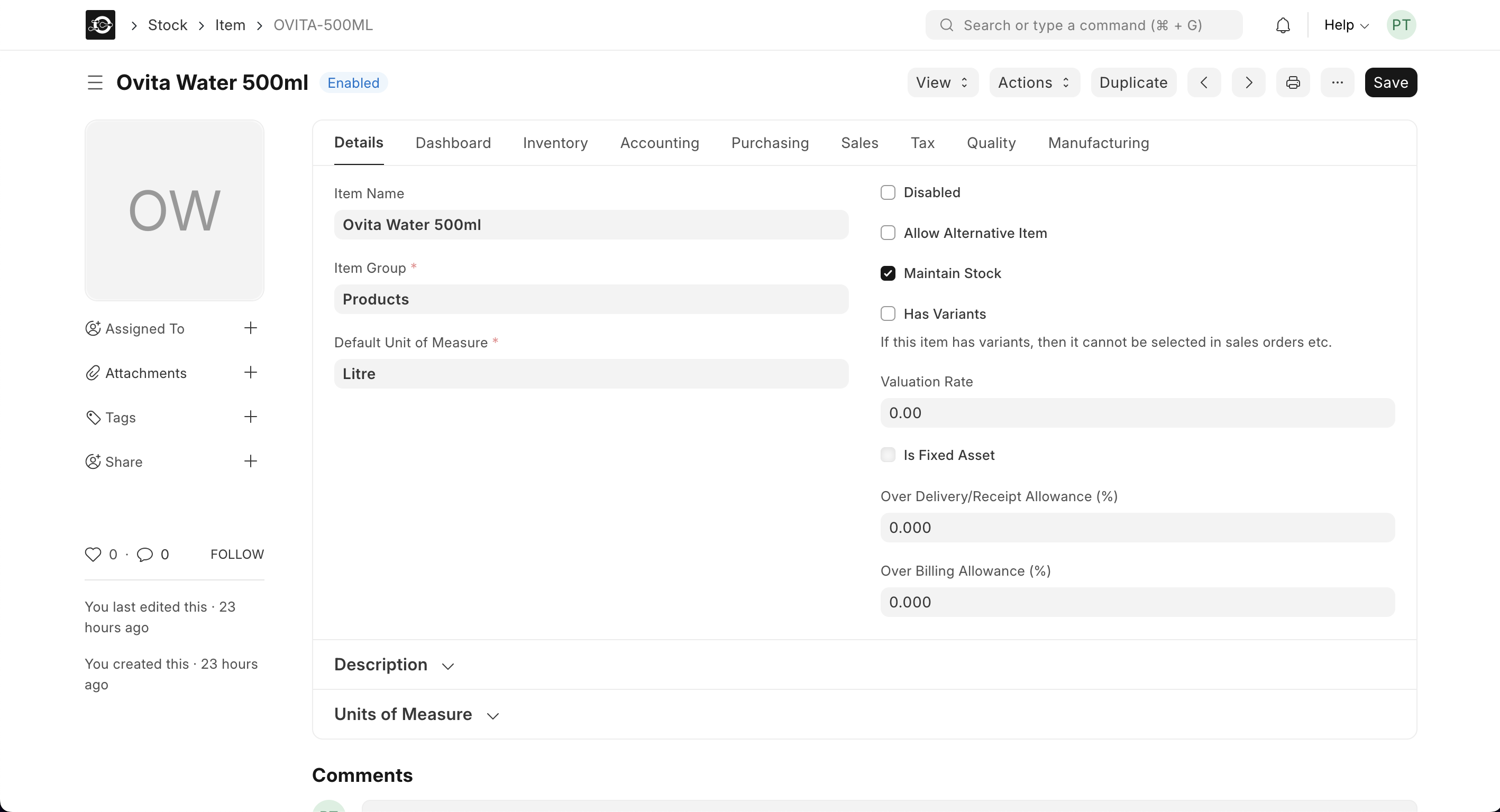
- Navigate Tabs
- Details: See basic info (name, code, group, UOM, stock settings).
- Inventory: View stock levels, ledger entries, and warehouses.
- Purchasing: Check default suppliers, purchase rates, and reorder levels.
- Sales: Review sales price lists and default sales rates.
- Accounting: Inspect valuation method, income/expense accounts, and tax settings.
- Quality: (If enabled) view quality inspection templates and records.
-
Manufacturing: (If enabled) see BOMs and production settings.
- Return or Edit
- To go back to the list, click the ← Back button.
- To make changes, click Edit (or Actions ▶️ Edit), update fields, and then Save.