

Warehouses defined for Returns and Finished Goods
1.0 Recording Customer Returns
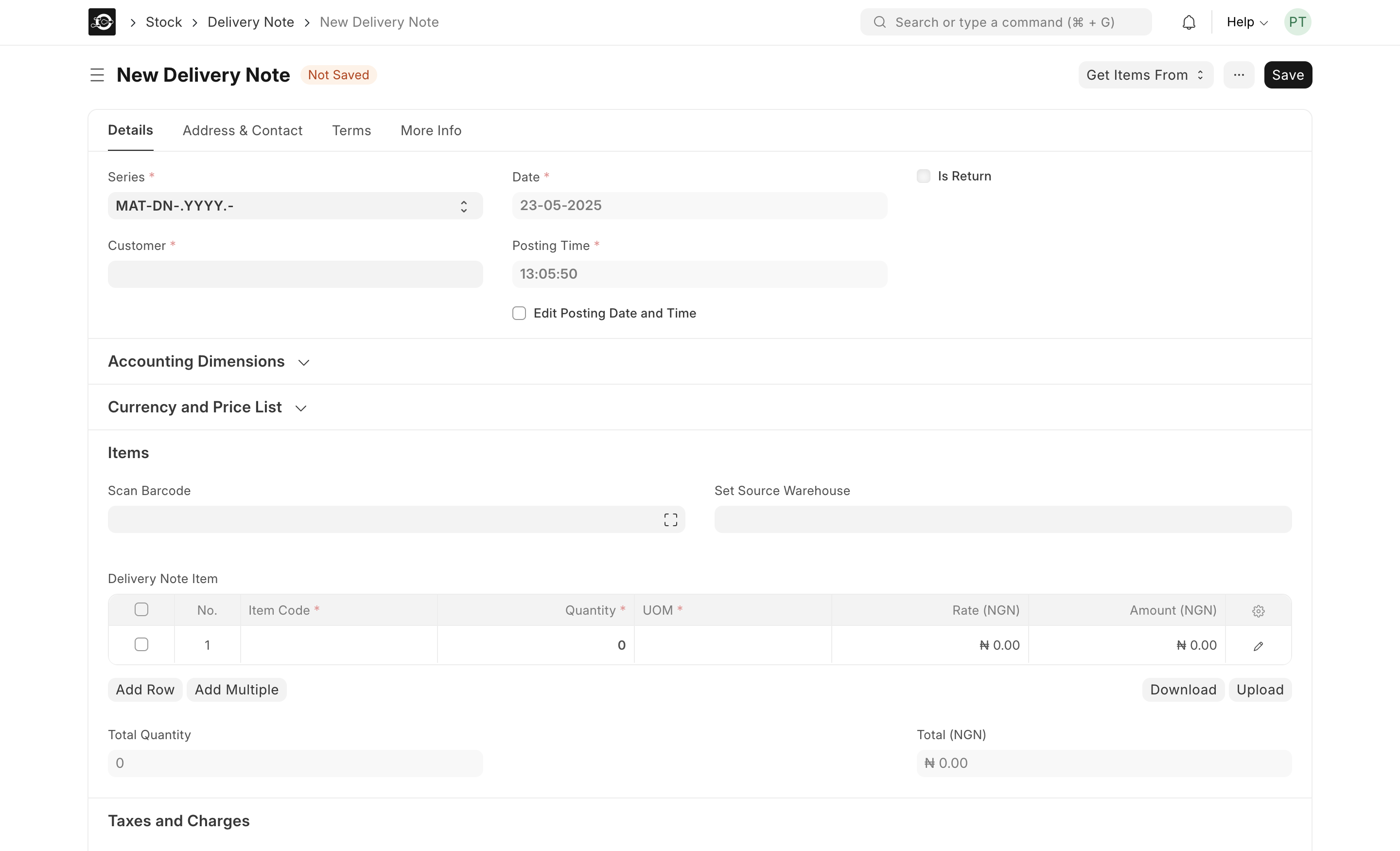
- Open a New Delivery Note
- Navigate to Stock ▶️ Delivery Note ▶️ New Delivery Note.
- Enable Return Mode
- Check Is Return at the top of the form.
- The document series updates to indicate a return.
- Link Original Sale
- Choose the Customer.
- Click Get Items From ▶️ Delivery Note (or Sales Invoice) to import returned items and quantities.
- Set Return Warehouse
- In each line, ensure Source Warehouse is your “Returns” staging location.
- Review & Submit
- Verify Total Quantity and item lines.
- Click Save, then Submit to post the return.
- A Material Receipt entry automatically adds returned stock back into your Returns warehouse.
1.1. Recording Finished Goods from Manufacturing
- Open Production Order
- Go to Manufacturing ▶️ Production Order, select the completed order.
- Create Receipt Stock Entry
- Click Create ▶️ Stock Entry and set Purpose to Material Receipt.
- Confirm Finished Goods
- In the Items table, verify the finished product code, quantity, and Target Warehouse (e.g., “Finished Goods”).
- Submit
- Click Save, then Submit.
- A Material Receipt updates your Finished Goods warehouse with the new stock.
2.0 Reviewing Inbound Movements
- Stock Ledger
- Stock ▶️ Stock Ledger ▶️ Filter Voucher Type = “Stock Entry”, Purpose = “Material Receipt”.
- Stock Balance
- Stock ▶️ Stock Balance ▶️ Include your Returns or Finished Goods warehouses to see updated quantities.